


Best Android Video Converters 2026: Free Ways to Convert & Compress Videos for Android
Do I really need a video format converter for Android in 2026?
Someone might argue that you no longer need a dedicated Android video converter, since modern hardware and today's media players already support most video formats and advanced codecs. However, "playback“ is only half the story.
Even in 2026, a dedicated Android video converter is still essential to solve what a media player cannot: saving storage via AI compression, fixing codec or compatibility issues in your system gallery, and optimizing aspect ratios for today's vertical phone screens.
So if you are wondering whether an Android video converter is still worth using, the answer is Yes. Let's dive into why a video converter is still your phone's best friend and go through some of the best free Android video converters I tested this year.
- • Part 1: Why You Need an Android Video Converter in 2026
- 1.1 AI Compression: Shrink 8K/4K for Android Storage
- 1.2 Fix Playback Errors: Resolve "File Not Supported"
- 1.3 Close the AV1 Gap: Convert for Older Androids
- 1.4 Perfect Aspect Ratio: Convert Landscape to Portrait
- 1.5 Pick Your Converter: Desktop vs. Online vs. App
- • Part 2: Best Free Video Converter for Android (Windows & Mac)
- • Part 3: Best Free Online Converters for Android
- •Part 4: Best Video Converter Apps for Android (On-Device Processing)
- • Part 5: Pro-Tips & FAQs about Android Video Converter
Part 1: Why You Need an Android Video Converter in 2026
This part will explain why 'playback' is only half the story. Whether you are using a 2026 flagship phone or an older device running Android 15 or 14, certain video-related issues still come up depending on what you need to do. Let's go through the most common challenges I've seen in 2026, and how a dedicated Android video converter can help solve them.
1.1 AI Compression: Shrink 8K/4K for Android Storage
8K/4K video can look breathtaking, but it's also a storage killer. In actual use, a short 10-minute 4K clip can easily devour 2GB, while 8K footage can hit 10GB, triggering the dreaded "Storage Full" warning right when you need your camera most. While cloud storage can help, it is often slow and expensive in practice. A dedicated Android video converter offers a smarter way out: reducing the file size of large videos by up to 80% without any visible loss in quality.
1.2 Fix Playback Errors: Resolve "File Not Supported"
Even in 2026, Android users still struggle with certain files from outside its own ecosystem, especially Apple ProRes, high-bitrate MKV files, and specialized audio codecs like AC3 or DTS. These files often stay "invisible" in Android system gallery or play without sound, making them impossible to edit or upload to social media.
Converting these "foreign" files into Android-friendly formats ensures they aren't just playable (they become part of your library), but also makes them easier for your phone to recognize, organize, share on social media, and back up without compatibility issues.
1.3 Close the AV1 Gap: Convert for Older Androids
AV1 is a future-proof codec, offering stunning visual quality at much smaller file sizes than HEVC or H.264. However, many Android 15 and older devices lack the dedicated hardware to decode it efficiently. To play high-res AV1 files smoothly without stuttering or overheating, converting them to the more universally compatible H.265 (HEVC) or H.264 remains the best solution for older hardware.
1.4 Perfect Aspect Ratio: Convert Landscape to Portrait
In 2026, vertical video is everywhere. While 8K/4K landscapes are great for TV or computer screens, they don't fit the 9:16 world of TikTok, Reels, or YouTube Shorts. Converting landscape video to portrait isn't just a matter of cropping. It's also about making your content "social-ready" and optimized for the one-handed viewing habit of modern Android users.
1.5 Pick Your Converter: Desktop vs. Online vs. App
To deal with these four challenges, you can choose among desktop software, online converters, or mobile apps. Each has its strengths depending on how you usually work. The comparison table below should give you a clearer idea of which one fits your needs best.
| Android Video Converter | Desktop Software | Online Video Converters | Mobile Converter Apps |
| 8K/4K Support | Fully supported with GPU acceleration | Limited by upload file size | Slow and resource-intensive; battery-hungry and heat-prone |
| Processing Performance | Superior: full GPU/hardware acceleration | Limited: depends on remote server speed and queue | Moderate: may cause the mobile CPU to overheat during long tasks |
| Conversion Speed | Ultra-fast: 30x-130x faster for batch processing | Slow: heavily dependent on upload/download speed | Moderate: limited by mobile processor efficiency |
| File Size Limits | Unlimited: supports large 50GB+ videos | Restrictive: usually capped at 100MB-4GB | Limited: bound by the phone's available internal storage |
| Batch Conversion | Yes: converts hundreds of files simultaneously | No: most tools only allow one file at a time | Limited: hard to manage multiple high-resolution files at once |
| Privacy & Security | Highest: 100% local processing | Low: files must be uploaded to a third-party server | Medium: apps often require broad system permissions |
| Internet Required | No: works 100% offline | Yes: requires a constant high-speed connection | Optional: depends on the specific app's functionality |
Part 2: Best Free Video Converter for Android (Windows & Mac)
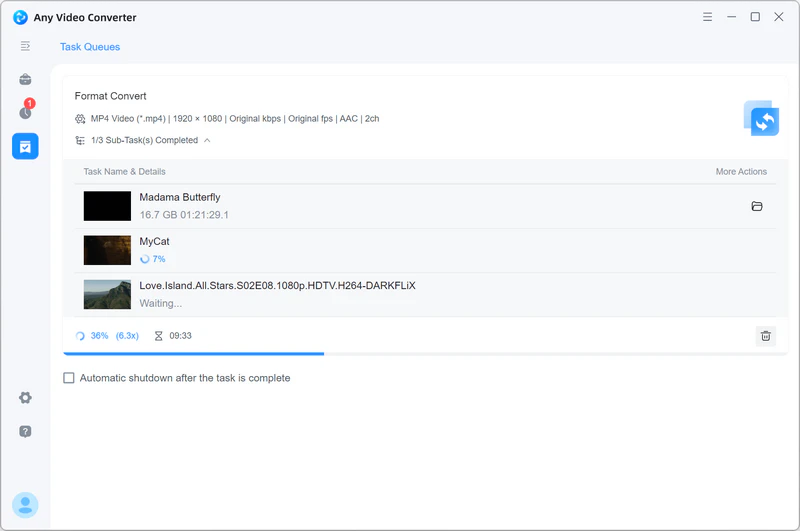
To convert videos into Android-specific profiles for seamless playback or convert massive 8K/4K footage into storage-friendly sizes, Any Video Converter remains the ultimate desktop solution for maximum efficiency at zero cost. Compared with most video converters on the market, it feels more capable, more reliable, and simple more pleasant to use.
• Truly free: Genuinely free to use, without hidden fees or update fees
• Safe and clean: No ads, and no bundled third-party software
• Unlimited: No restrictions on how many files you can convert and how large they can be
• Multi-format: 1000+ video and audio formats supported, even niche formats
• Up to 130x faster conversion: Even the free version includes GPU acceleration
• Device presets: Well-designed presets for Android, iPhone, TV, and other devices
• Advanced controls: Offer detailed video, audio, and subtitles options for powerful users
• More versatile: All-in-one video converter, compressor, editor, and AI powerhouse

How to Use Android-specific Presets in Any Video Converter
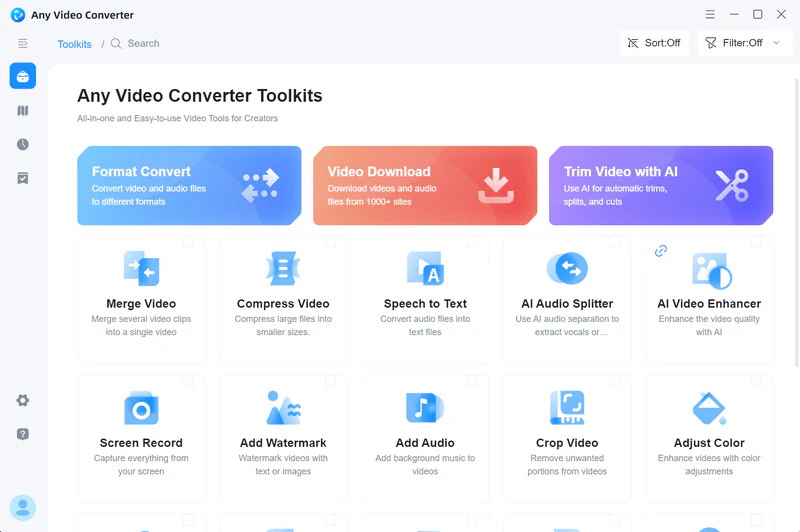
Step 1: Launch 'Format Convert' tool. Open Any Video Converter and select the 'Format Convert' tool from the main interface.
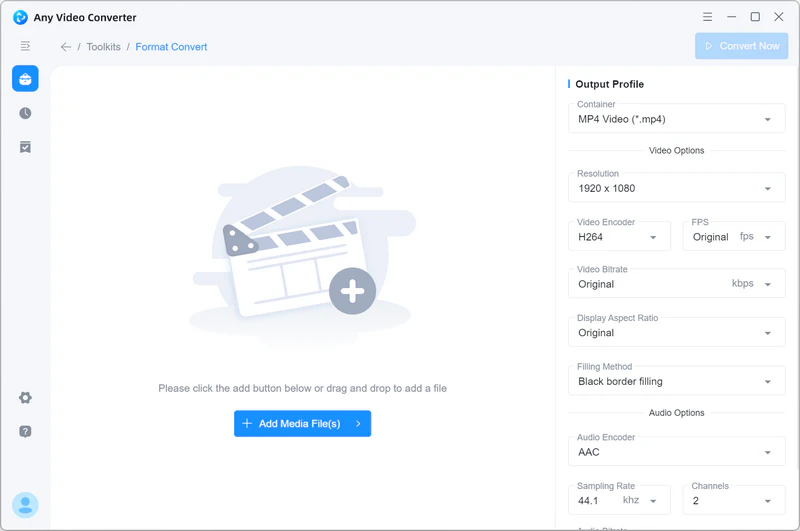
Step 2: Import videos or add an entire folder. Click 'Add Media File(s) 'to upload the 8K/4K large videos or incompatible files (like ProRes/AV1) you wish to optimize for Android.
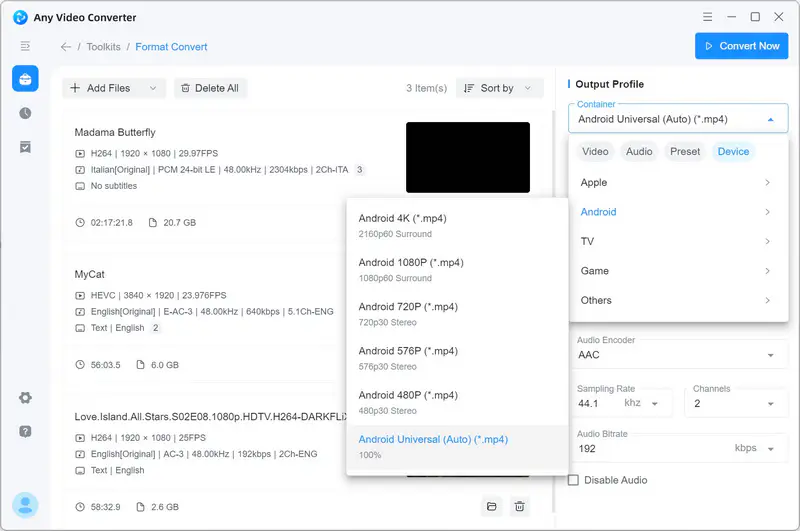
Step 3: Select an Android profile. Under the output profile, navigate to 'Device' → 'Android'. From the drop-down list, choose your desired resolution, such as Android 4K, Android 1080P, or Android Universal, to ensure the best fit for your phone's screen.
Step 4: Start the conversion. Click 'Convert Now' to initiate the process. By leveraging GPU acceleration, the videos will be ready for your Android device in minutes.
Part 3: Best Free Online Converters for Android
Online video converters offer a more flexible, browser-based alternative for Android users. Since they work across different operating systems, you can use them without installing anything. If you just need a quick fix directly on your Android phone, here are some reliable and free online converters worth trying.
Online video converters often come with file size limits, especially when you are dealing with large 8K/4K content. In this case, a professional desktop solution is always your reliable fallback.
3.1 FreeConvert
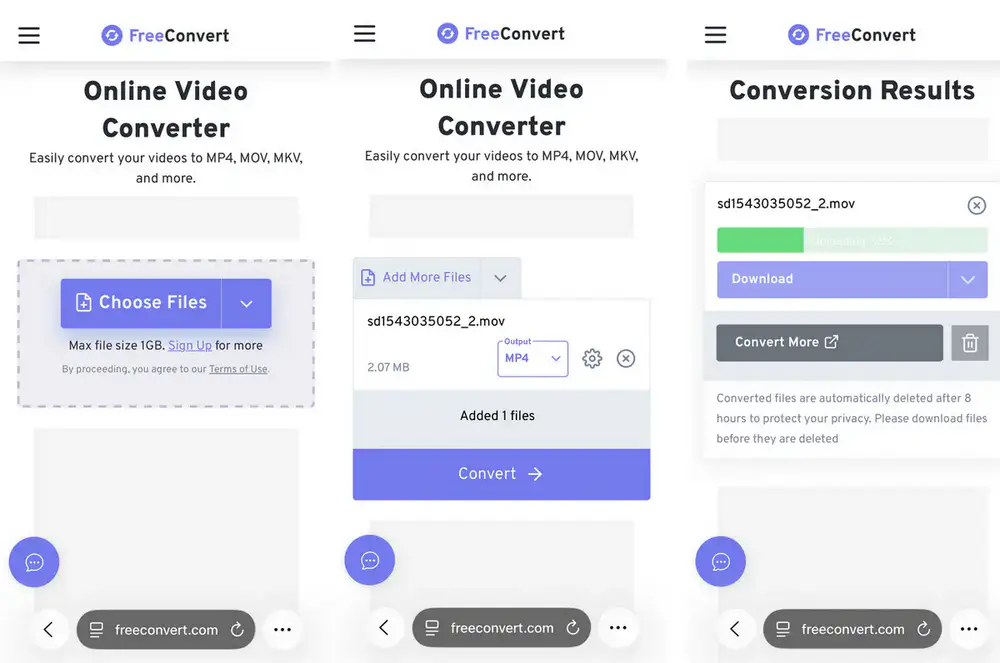
FreeConvert is always one of the more dependable options when you need an online video converter. It is an all-in-one platform that combines file conversion, compression, and a suite of tools. In my testing, it was one of the more practical choices for Android users, especially since it lets you convert and compress videos up to 1GB for free directly in the browser.
Step 1: Upload your video. Upload your file to FreeConvert. Ensure the file size is under 1GB if you are using the free tier.
Step 2: Configure settings for Android. Unlike Any Video Converter's one-click presets, FreeConvert requires manual configuration to ensure the best compatibility with Android devices. Click the 'Gear' icon and apply the following recommended parameters for Android:
- Output Container: MP4
- Video Codec: H.265 - CPU (GPU acceleration is a premium feature)
- Rate Control Method: CRF (Constant Rate Factor)
- CRF Value: 28 (the balance between good quality and file size)
- Resolution: 3840 x 2160 or 1920 x 1080, based on your screen
- Aspect Ratio & FPS: Original
- Audio Codec: AAC (Stereo, 128-192kbps)
Step 3: Apply and convert. Click 'Apply Settings', then hit the 'Convert' button to process your Android-ready video.
3.2 123APPS Video Converter
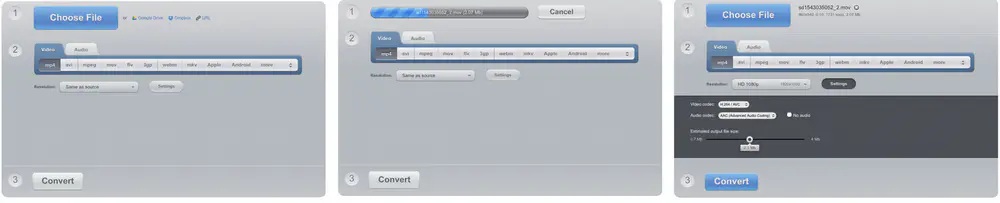
123APPS is a versatile online tool for video, audio, PDF, and file conversion. Compared with many online services, it feels much less restrictive in actual use: unlimited conversions and support for uploads up to 4GB. If you are looking to process larger files on your Android and do not want to run into FreeConvert's 1GB limit, 123APPS is the more practical online option.
Step 1: Upload a video. Click 'Choose File' to upload a video (up to 4GB in size).
Step 2: Configure for Android compatibility. Click 'Settings' and change the video codec to H.264 or H.265, audio codec to AAC, and resolution to HD 1080p.
Step 3: Start the conversion. Click 'Convert' to start converting a video for Android.
3.3 ONLINE-CONVERT
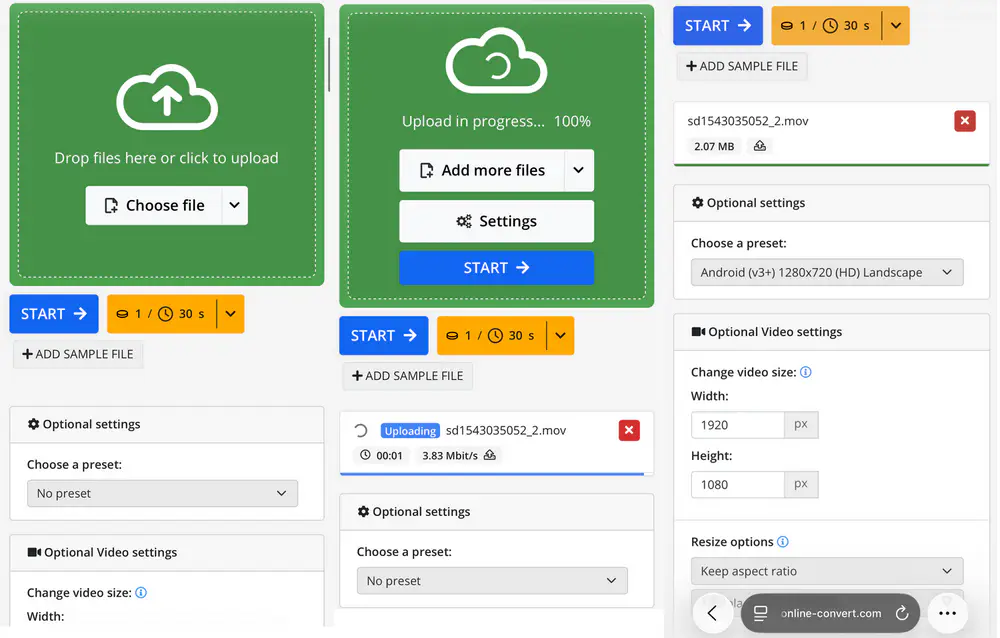
ONLINE-CONVERT is one of the few online video converters that offer a dedicated Android preset for conversion and support simultaneous multi-file uploads. That said, the free tier is more restrictive than its competitors. Instead of setting a hard limit on file size or the number of files, it puts a cap on total conversion time.
You get 16 free credits, and they are consumed based on video length: converting a 30-second clip typically costs 1 credit, giving you a total of roughly 8 minutes of video processing for free. This makes it a great choice for short clips, but less ideal for long-form content.
Step 1: Upload videos. Click 'Add file' to upload your videos. You can upload multiple files at once, but the total duration must not exceed 8 minutes; otherwise, you won't have enough free credits to process them.
Step 2: Choose a preset. Under the preset list, you can choose Android (v3+) as the preset, and change the video size to 3840x2160 or 1920x1080.
Step 3: Start converting. Click 'START' to start the conversion.
Part 4: Best Video Converter Apps for Android (On-Device Processing)
The dedicated Android app seems like the most logical choice to convert videos on the go, as you can process videos on the phone locally. To test if the on-device conversion is truly the most efficient path, I installed and actually tried some top-rated ones on Google Play. To be honest, nearly all of them come with ads, in-app purchases, or even payment methods bound in advance for the free trial. Finally, I picked up two of them, which worked in a pinch, but far from ideal.
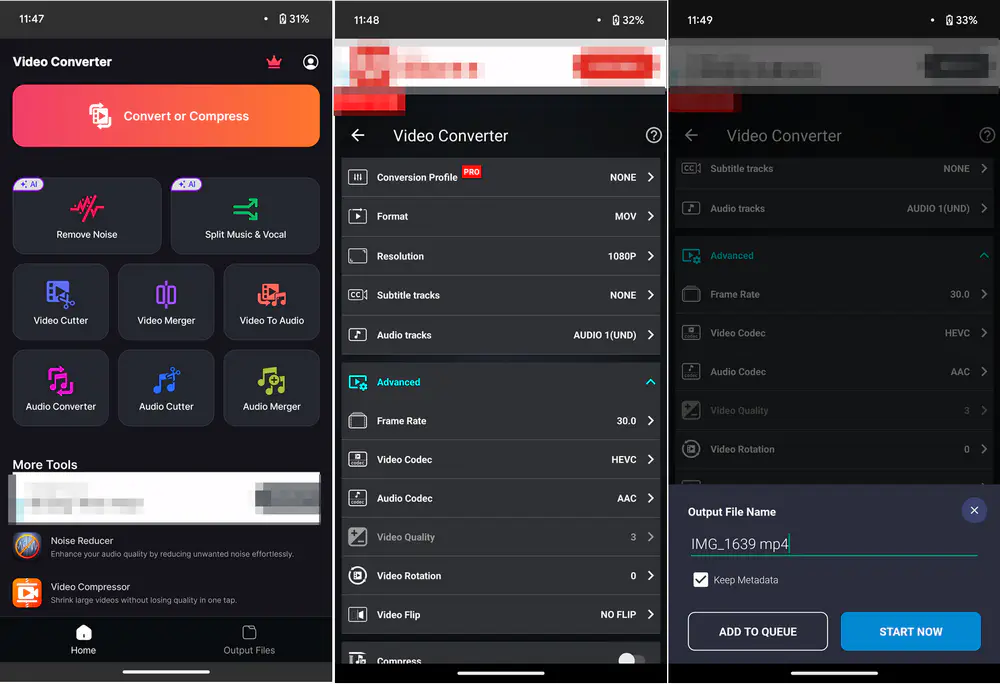
4.1 Video Converter, Compressor
This is an all-in-one video converter and video compressor rated 4.7 on Google Play. It covers the most commonly used video containers, video & audio codecs, and other basic settings you need for everyday conversion tasks. However, in my actual use, too many ads ruined my experience and expectations. As many users have complained, the ads in this app are everywhere and unbearable, from the moment when opening to every step.
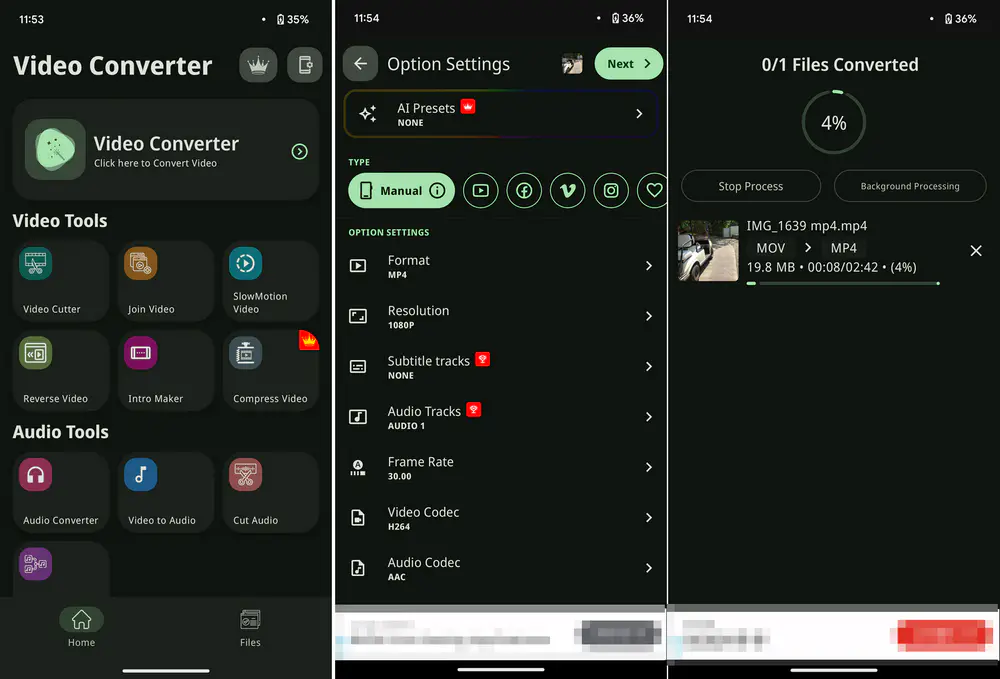
4.2 Video Converter
This video converter app has a lower rating (4.4) and fewer reviews than the first one, but the ad experience is not that intolerable. The interface is not flooded with large pop-ups, and most of the time, you only see a banner ad at the bottom. Although options like audio and subtitle track settings are premium only, it still covers the basic conversion needs.
Part 5: Pro-Tips & FAQs about Android Video Converter
Q1. What formats and codecs are best for Android in 2026?
A: For the newly-released Android flagships, to achieve the balance between high-efficiency compression for high-quality video, especially 8K and 4K, and the best compatibility, AV1 is gradually becoming mainstream.
For most Android models, the MP4 container, H.265 or H.264 video codec, 1080p resolution, and AAC audio codec are safe and sound settings.
Q2. Why is MP4 file not playing in my Android phone?
A: If this playback issue happens on old models (generally Android 14 or older), the most likely reason is the unsupported video codec or outdated/unsupported hardware. The newer video codecs like H.265 or AVI (some videos downloaded from YouTube might be in this codec) are not compatible with the old Android phone, or the hardware is too old to play the high-bitrate and high-res videos in 4K/8K 10-bit color.
To solve this for old Android devices, choose an Android video converter from above to convert videos into MP4 H264 for the best compatibility.
Q3. Which video converter is best for Android?
A: This all depends on what kind of video you want to convert for your Android. The answer is that an online or Android app for short videos, and a desktop converter, as a candidate for videos in a larger size.
For the most stable performance (fast conversion and no crash) and a friendly user experience (no ads and no file numbers/size limits), the desktop solution, like Any Video Converter, is undoubtedly the best, especially when you need to simultaneously convert large videos (6GB or larger).
If you only need to convert the short videos (smaller in file size), you can choose an online or dedicated Android app.
Q4. How to convert a video into audio for Android?
A: Here are the most convenient and quick ways to convert video to audio for Android:
1. Using the Android app for the best convenience.
Step 1: Install the app on Google Play and open it.
Step 2: Select the video from your gallery and choose your preferred audio format.
Step 3: Tap 'Convert' to start converting a video to audio directly on Android.
2. Using an online converter to convert a short video to audio.
Step 1: Open your browser on Android and open the site like FreeConvert
Step 2: Upload a video and choose the audio format.
Step 3: Hit 'Convert' to extract audio from video, and download the converted audio to Android.
Pro tips: If neither of these two methods works as you wish, a free desktop tool like Any Video Converter or HandBrake is often the more reliable fallback, especially when you need better format support or more control over the output.
Q5. How to convert iPhone videos to Android?
A: Videos shot/recorded on iPhone are most likely in HEVC, Dolby Vision HDR, or ProRes, which may not play properly on older Android models. In this case, using a video converter is often the easiest way to make iPhone videos more compatible with Android. To ensure your iPhone videos can be read properly and converted correctly with the Android presets, Any Video Converter is right for you.
Step 1: Install Any Video Converter on your desktop and open it.
Step 2: Choose the 'Format Convert' tool and import your iPhone videos.
Step 3: Select a suitable preset under 'Device' → 'Android', and click 'Convert' to start converting iPhone videos for Android.
Q6. How to convert 4K video to 1080p on Android?
A: If you have a bunch of needless 4K videos that are eating up the long-term storage, the easiest way to mass-convert 4K videos to 1080p without losing too much detail is to use Any Video Converter.
Step 1: Choose the 'Format Convert' tool and import your 4K videos in bulk or add the entire folder.
Step 2: From the drop-down list of 'Device' → 'Android', select 'Android (1080p)', which is a well-made preset for converting videos to 1080p for Android devices.
Step 3: Click 'Convert' to start converting 4K videos to 1080p for Android.
Conclusion
While online tools and dedicated Android video converter apps are usually the quickest and most convenient way to handle video conversion on the go, especially when you want to avoid transferring files back and forth between devices, it is still worth keeping a desktop solution as a backup. In my experience, once you need to process larger files or convert videos in bulk, a desktop converter is still the more reliable and efficient option.
Convert videos for Android with Any Video Converter, totally free and unlimited.


Charlie Campbell | Content Writer
Charlie Campbell is an experienced technical documentation writer with a background in software development and a passion for emerging AI technologies. Dedicated to helping readers stay ahead in the fast-paced digital landscape, he combines technical expertise with clear communication to simplify complex topics and keep audiences informed on the latest advancements.