Compress Video for Easier Uploading, Sharing, and Storage
Any Video Converter is a powerful, free tool for compressing videos. Easily reduce the video size for Discord, email attachments, or to save valuable storage space without sacrificing quality.


Video Tutorial: [3 Easy Steps & Free] How to Compress a Large Video?
Highlights of the Compress Video Tool of Any Video Converter
1. 100% Free. No limits on video count, length, or size.
2. Extensive Format Support. Compress almost all videos to reduce their size.
3. Compress by Percentage: Shrink your video by 30% to 80% of its original size.
4. Compress by Size: Set a specific target file size for your output.
5. Compression Strategy: Choose your priority: Balance, Keep FPS, Keep Resolution, or Keep Both.
How to Compress Videos for Free with Any Video Converter
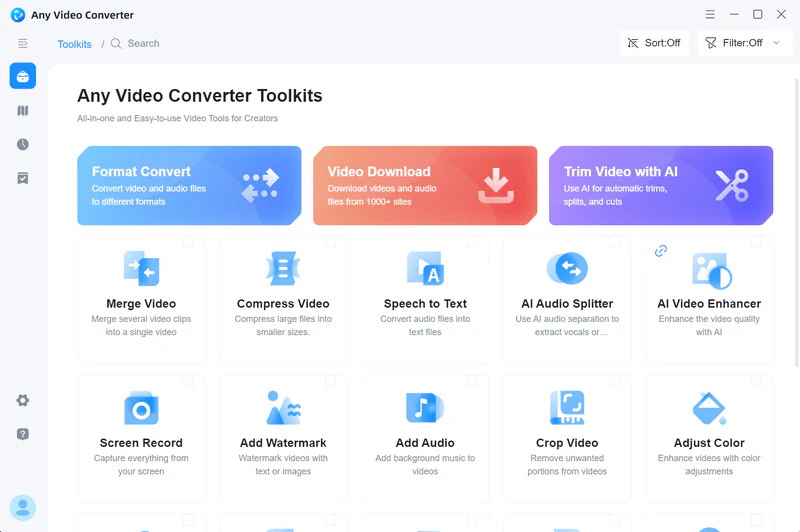
Step 1 Open the "Compress Video" Tool
Launch Any Video Converter and locate the 'Compress Video' tool within the third one of the toolkit list.
Step 2 Upload Videos or an Entire Folder
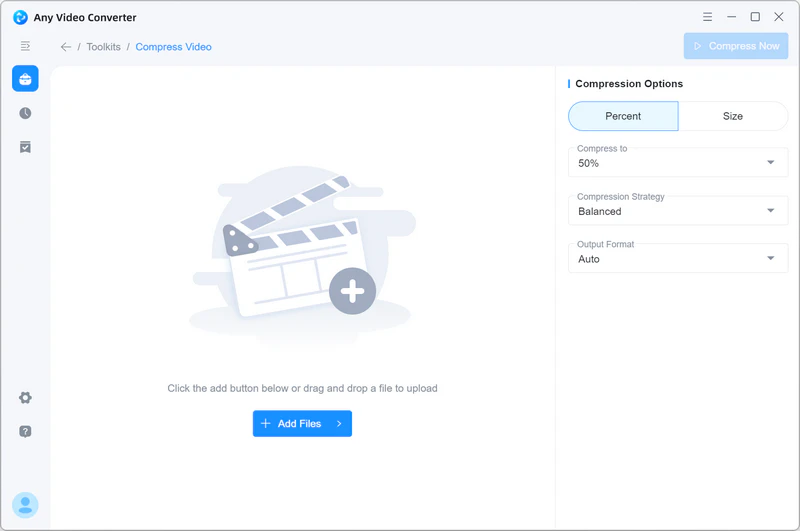
Click 'Add File(s)' to browse and select one or more videos from your computer.
Or click the ' ' next to "Add Files(s)" to import an entire folder for batch compression.
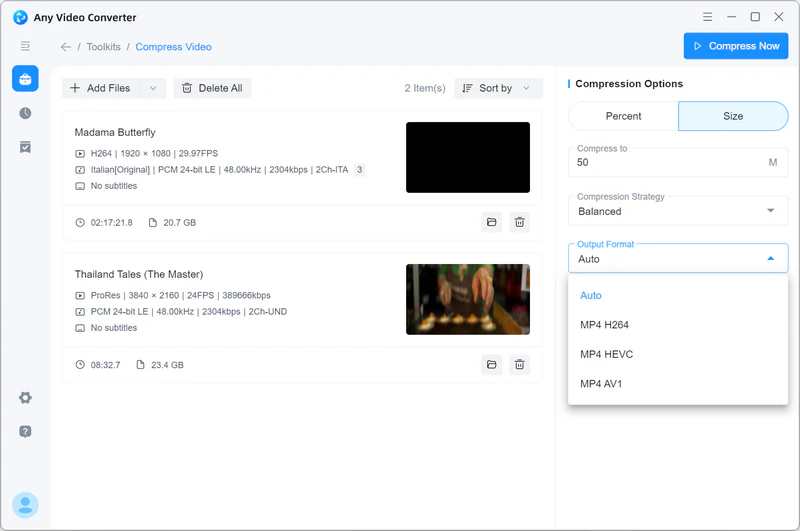
Step 3 Configure Compression Settings
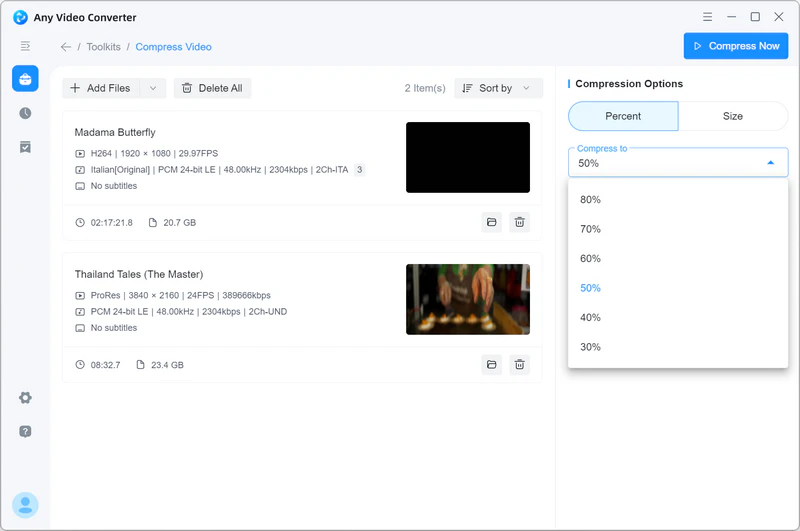
Under the 'Compression Options' panel, you can customize the following parameters to suit your needs:
- Percent: Select a compression ratio (30% - 80%) to scale down the file size.
- Size: Manually enter the specific file size (e.g., in MB) you wish to achieve
- Compression Strategy: Choose a priority that fits your goal, like Balanced, Keep FPS, Keep Resolution, or Keep Both.
- Output Format: Choose 'Original,' a preset, or enter a custom frame rate.
- Video Bitrate: Apply the recommended bitrate or select a specific value.
- Audio Options: Auto, MP4 H264, MP4 HEVC, MP4 AV1.
Step 4 Start the Video Compression
Click 'Compress Now' to start compressing videos to reduce file size.
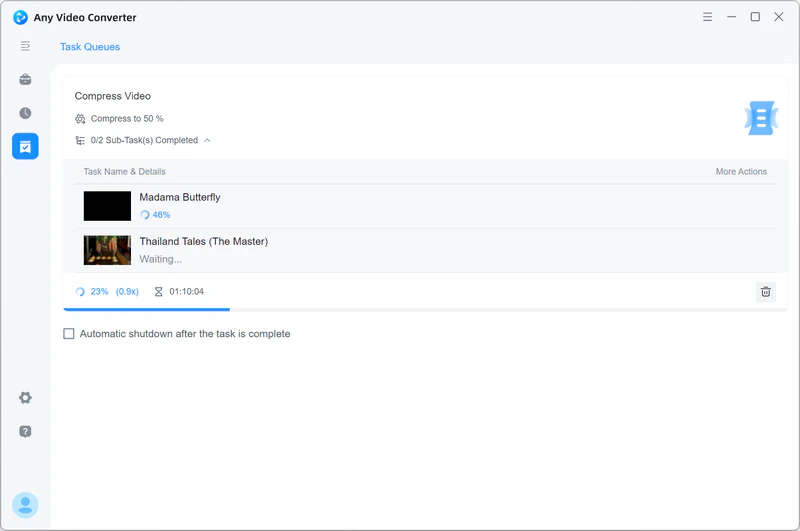
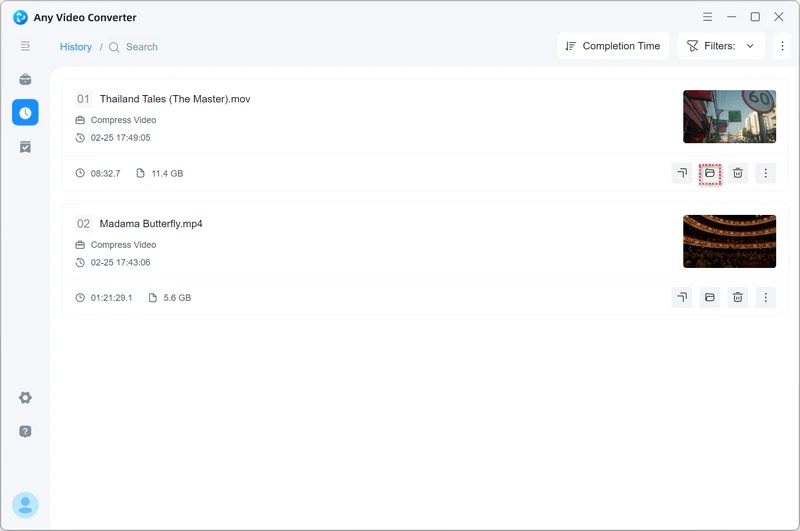
Once the compression is finished, go to the left menu bar and click the ' ' button, then click the '
 ' icon to locate your compressed files.